
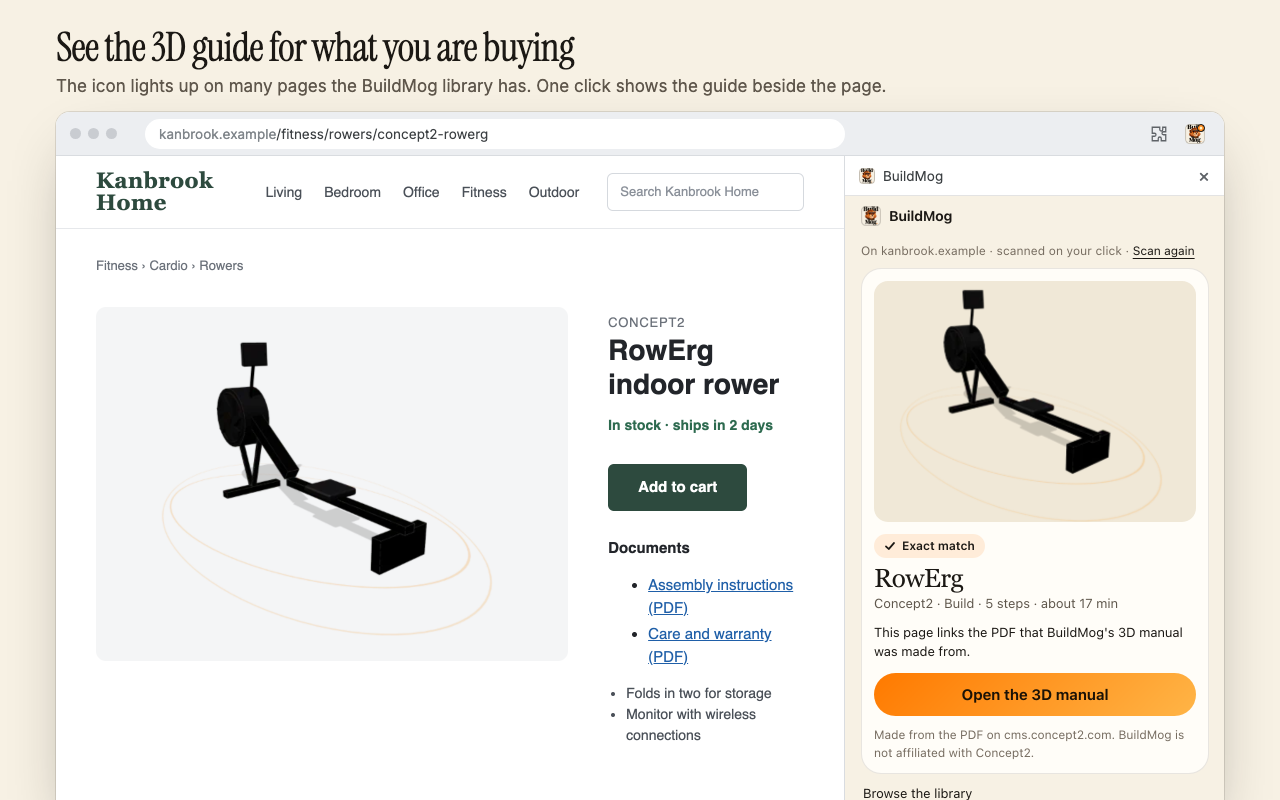
How it works
- Look for the dot. On many store pages and PDF manuals that the library has, the extension's icon shows an orange dot. Your browser checks the page against the library's list by itself, so the extension learns nothing about the pages you visit. No dot? A click on the icon checks the page anyway.
- Click the icon. Its window shows the match: the manual's picture, its steps, the time it takes and how many people it needs.
- Open the 3D manual. It opens on buildmog.com in a new tab, with every part, screw and step.
On a link to a PDF manual, right-click and choose Open in BuildMog 3D. If the library has that manual, it opens at once; if not, a small window says so and lets you search the library.
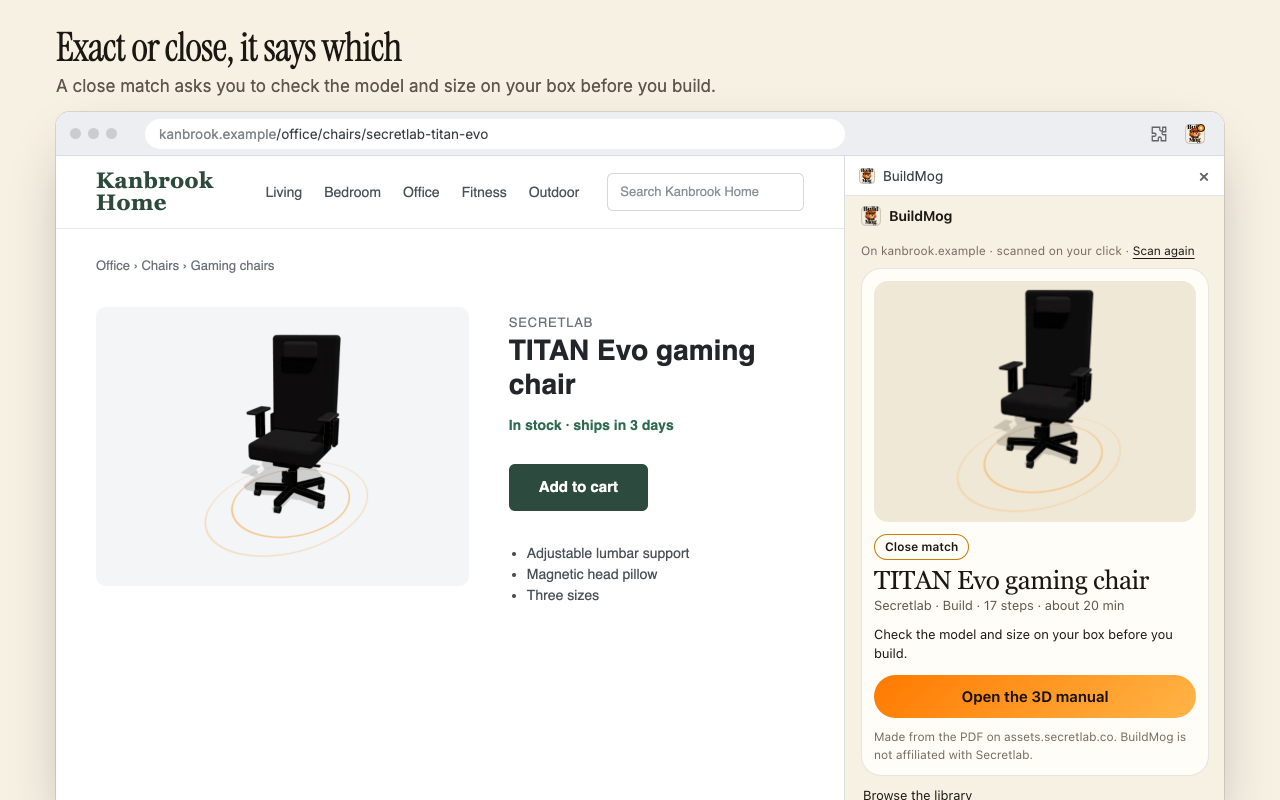
Exact or close
Exact: the page is, or links, the very PDF the 3D manual was made from. Close: the page is a product page of the same brand and model, but it does not link that PDF. Makers renew products under the same name and sell them in several sizes, so a close match asks you to check the model and size on your box, and names the size when the manual was made for one. A different model, size or kind of product is not called a match at all, and for cribs, car seats, strollers and other children's products only an exact match is offered.
What it reads, and what it never sends
- The tab you click it on, at that moment: the address, the title, the product's name, brand and model, and the PDF links, and on a page that lists several products, the names and addresses of its links to product pages. If you turn on Scan this page in the side panel and your browser asks and you allow it, the panel also reads the page in the tab you are looking at each time a page loads, while the panel is open, until you turn that off at the foot of the panel. It compares them with the library list stored inside the extension, and what it reads stays on your computer, unless you press Find its manual on BuildMog or Make its 3D manual on BuildMog: then the product's name and brand go to buildmog.com's scan page, and, while the website builds manuals, the addresses of the manual PDF and the pictures the page shows; never the page's own address.
- Without that permission it has no standing access to the sites you visit. Either way it changes nothing on them, and never signs you in or takes payments.
- Its usage counts are content-free: which buttons were used and which library manual opened, with a random number for the installation, never an address or what you searched for. In the European Economic Area, the United Kingdom and Switzerland they stay off until you say yes. The details are in section 9 of the privacy policy.
When the library has nothing
The window offers Find its manual on BuildMog. It opens buildmog.com's scan page with the product's name, and the website names the product, looks for the maker's own manual and can build its 3D version as a custom manual: one a month is free with an account, more with a Project Pass or Pro. When the page links its manual or shows its assembly, the button reads Make its 3D manual on BuildMog, and the website builds from those. On a set, such as a table and chairs, you pick the piece first. On a page that names no product, it opens the scan page empty, for a photo you take or choose there. The extension itself never takes a picture of a page and takes no payment.